Save every open tab. Return when you’re ready.

OnePage Tabs turns a crowded Chrome window into a named, recoverable session—stored locally on your device.

Add to ChromeComing soon to the Chrome Web Store
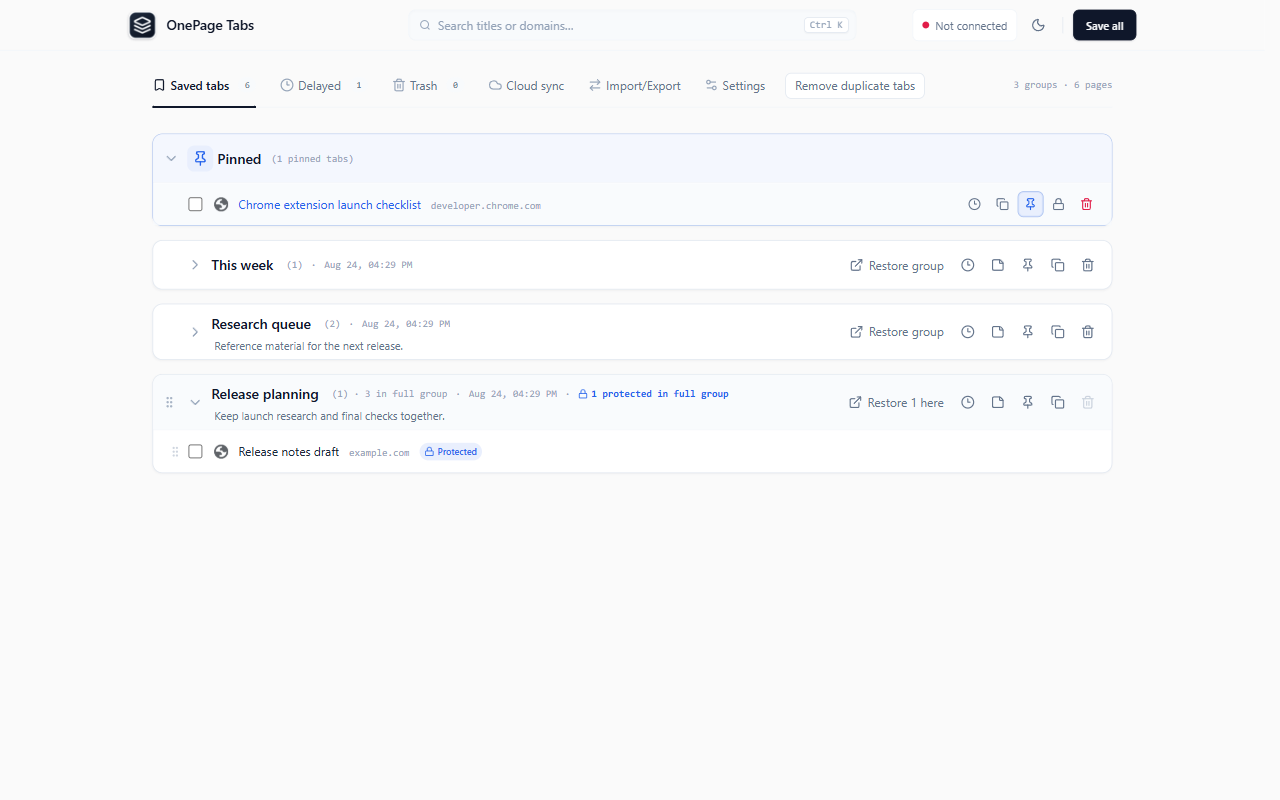
OnePage Tabs library showing saved tab groups, individual tabs, and restore controls

OnePage Tabs

Fewer tabs. Your work is still here.

You do not have to finish organizing everything before you close it. Put the current window away now, then come back when you are ready.
  1. 01

    Put away the current window

    Click the extension icon to save eligible tabs to your local library. OnePage Tabs closes only the tabs included in the confirmed save.

  2. 02

    Bring the right work back at the right time

    Search, rename, add notes, pin important items, or set a return time for a group or a single tab. A reminder never opens a page for you.

  3. 03

    Restore at your own pace

    Open one tab, a whole group, or continue in a new window. Anything that fails to open stays in your saved list.

Built around the handoff

Closing tabs is easy. Continuing the work is what matters.

OnePage Tabs puts closing after a confirmed save, and removal after a successful restore. The interface follows the state of your data, not the other way around.
  1. 01

    Confirm the save before closing

    The original tabs are closed only after their local records have been written and checked.

  2. 02

    Remove only after a successful open

    If some tabs cannot be opened, those items remain where you can see and try them again.

  3. 03

    Keep a way back from cleanup

    Deleted items go to the trash first, and important tabs can be protected from destructive cleanup.

Local by default

Your tabs stay in your browser.

The current version needs no account and includes no ads, telemetry, or analytics SDK. Saved URLs, titles, notes, and reminders stay in the extension database for your current Chrome profile. They are not uploaded to the developer or a third-party server.
  • No host permissions and no content scripts
  • No page text, forms, or passwords are read
  • Reminders use local Chrome scheduling and optional system notifications
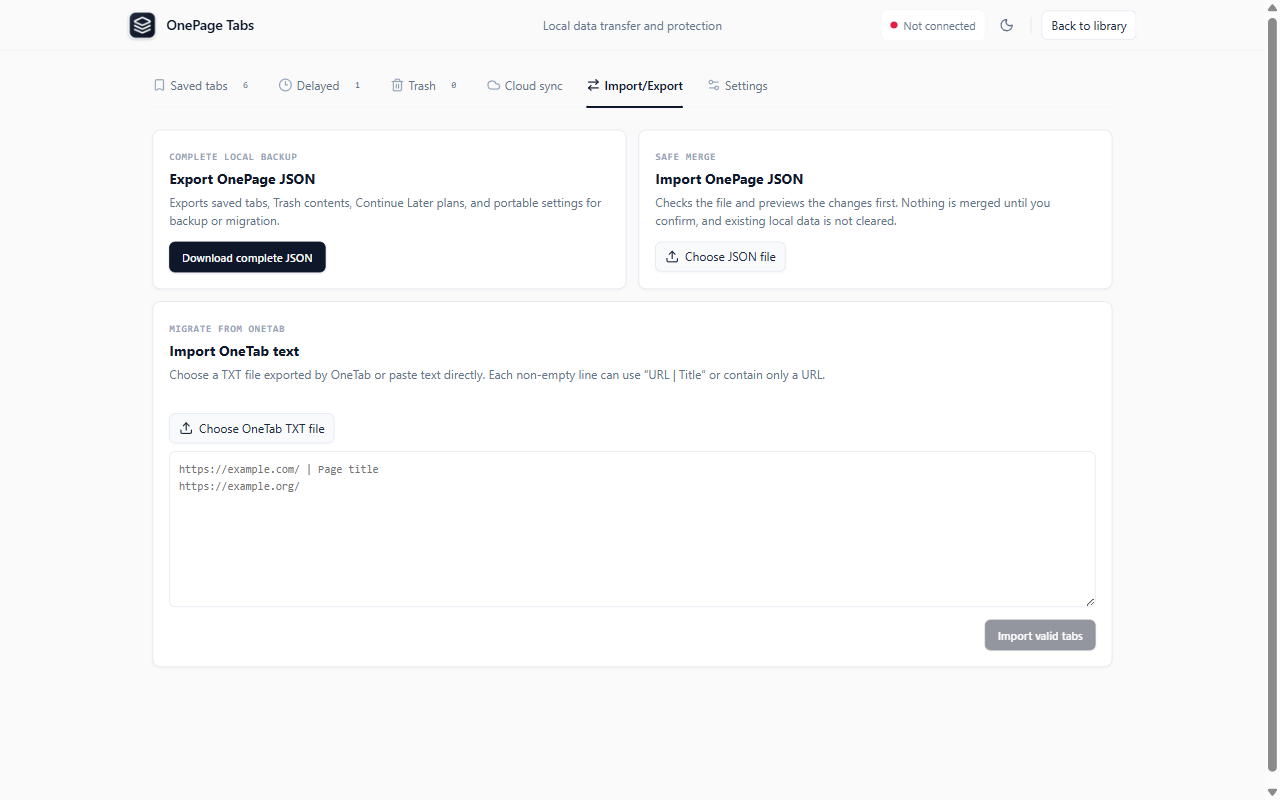
  • You can export a OnePage JSON file whenever you want an external backup

Local storage is not an external backup. Uninstalling the extension, clearing extension data, or deleting the browser profile may remove saved tabs. Export important work regularly.

Read the full privacy policy

Bring your list with you

Switch tools without starting over.

If you already have tabs saved in OneTab, import its text export or paste the text directly. OnePage Tabs checks the format and size before importing it locally.

OnePage Tabs is an independent product and is not affiliated with OneTab.

Questions before you install

Clear answers about your tabs and data.

Will my data remain after I uninstall the extension?

Do not assume it will. Uninstalling the extension, clearing extension data, or deleting the browser profile may remove local data. Export a OnePage JSON backup before troubleshooting or making browser changes.

Can I move from OneTab?

Yes. Import a OneTab text export or paste a compatible text list into the import screen.

Will Continue Later open tabs automatically?

No. A due reminder brings the saved item back to your attention. Tabs open only after you choose a restore action.

Does OnePage Tabs sync between devices?

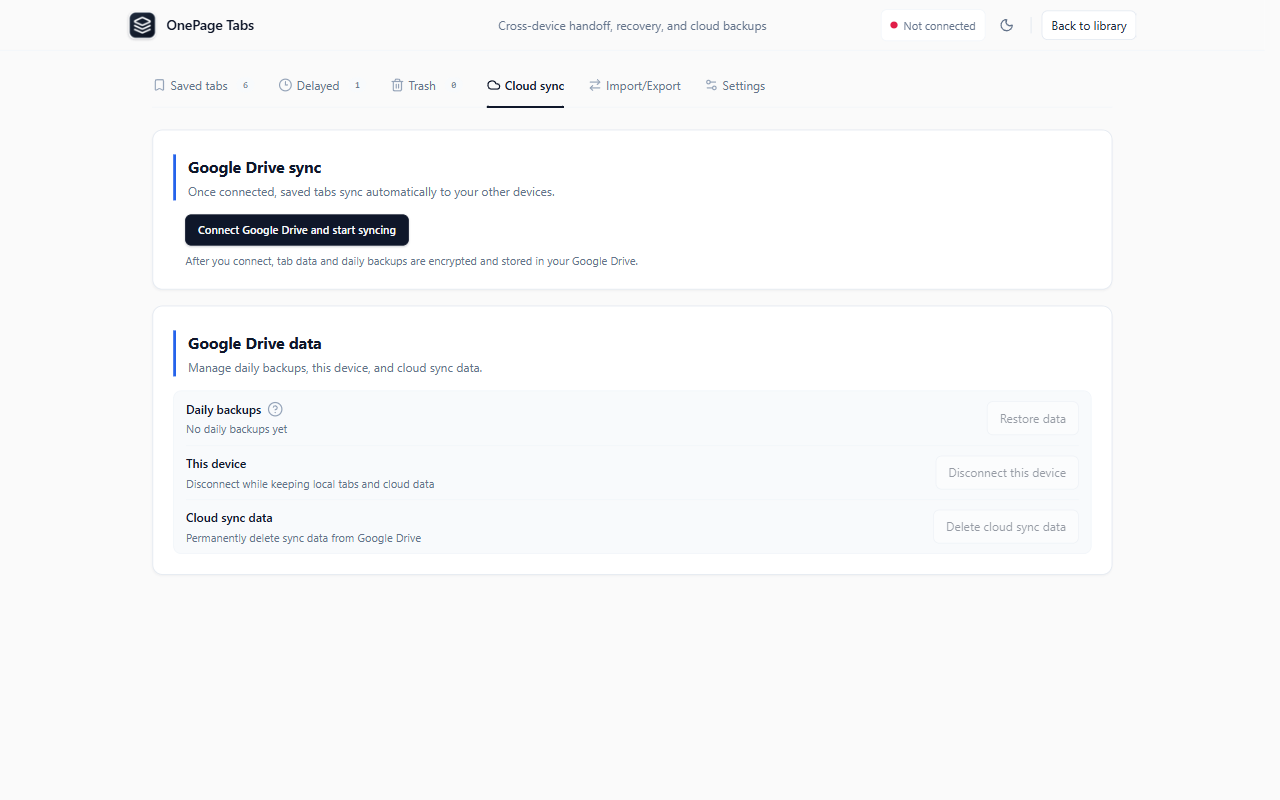
Not in the current version. Local data is never uploaded automatically. Any future sync feature will explain encryption, data scope, deletion, and user controls before it is enabled.

Which browsers are supported?

The first official release targets desktop Chrome. Other Chromium browsers may be able to install it, but they are outside the initial support scope.

Put it away now. Continue when you’re ready.

You should not have to choose between closing a tab and being afraid you will forget it. Keep unfinished work in one clear, recoverable place.

Add to ChromeComing soon to the Chrome Web Store